


Configuring Farm Managers, Farm Hosts, and Third-Party Load Balancers with GO-Global
Introduction
The GO-Global Farm Manager and Farm Host roles make it easy to manage large-scale deployments by centralizing control across multiple servers. A Farm Manager oversees a cluster of Farm Hosts, allowing administrators to manage sessions, apply configurations, and monitor performance from a single point. When paired with a third-party load balancer, this setup provides flexibility, scalability, and reliable session reconnection for users across devices. This guide explains how to configure Farm Managers, Farm Hosts, and failover systems to optimize your GO-Global environment.
Farm Manager
A Farm Manager is a GO-Global Host that is used to centrally manage a cluster of Farm Hosts. Unlike a Relay Load Balancer, Farm Managers do not load-balance connections to the Farm Hosts, and they do not relay data between clients and Farm Hosts. Farm Managers manage connections to Farm Hosts using a third-party load-balancer. A Farm Manager must be configured before configuring the Farm Hosts.
To configure a Farm Manager
- Select the desired host from the list of All Hosts.
- Click Tools | Host Options.
- Click the Configuration tab.
- Click Application Host Manager.
- Click Farm Manager.
- Click OK.
- Restart the Application Publishing Service.
See Farm Manager Resource Requirements for GraphOn's recommended resources for Farm Managers.
Note:
The Log folder must be the same on all systems in a GO-Global cluster. For example, when a Farm Host connects to a Farm Manager, the path to the Log folder of the Farm Host will be set to the path to the Log folder on the Farm Manager (e.g., %PROGRAMFILES%\GraphOn\GO-Global\Log). If that path does not exist on the Farm Host, the Application Publishing Service will fail to start on the Farm Host. For more information, see Log Files.
Farm Host
A Farm Host is a GO-Global Host that is connected to a Farm Manager. GO-Global clients connect directly to Farm Hosts.
To configure a Farm Host
- Select the desired host from the list of All Hosts.
- Click Tools | Host Options.
- Click the Configuration tab.
- Click Application Host.
- Click Farm Host.
- In the Farm Manager address field, type the IP address of the Farm Manager.
- Click OK.
- Restart the Application Publishing Service.
GO-Global users/clients are not intended to connect directly to Farm Managers. The recommended design and use case for a farm deployment is to utilize a third-party load balancer, which forwards connections directly to various Farm Hosts. There are various free open source and proprietary hardware, software and virtual-cloud load balancers available for this purpose.
Note:
Users must be an administrative user on any local or remote host they are administrating. If not, they will be prompted for a user name and password so that they can then enter an administrator user name and password for that host or manager.
Configuring a Third-Party Load Balancer
GO-Global's Farm Host and Farm Manager roles make it easy for administrators to manage farms of GO-Global Application Hosts that are accessed via third-party load balancers. Using these roles, administrators can manage and shadow sessions running across a farm, and they can configure settings on all Farm Hosts in a farm at once. And when new Farm Hosts join a farm, they automatically inherit the settings of the other hosts in the farm.
In addition, these new roles enable users who connect to GO-Global Hosts via third-party load balancers to disconnect from their sessions from one device and reconnect to their sessions from a different device. GO-Global automatically reconnects users to their sessions, even when the load balancer fails to connect a user to the host on which the user’s session is running.
For example, if a user with a session running on Host A disconnects from the session while at work, goes home, and then reconnects to the session from a home computer, GO-Global will ensure that the user is reconnected to his or her session. If the load balancer routes the user's connection to Host B, Host B will open a connection to Host A and relay the data between AppController and Host A.
To enable these capabilities:
- Create a GO-Global Farm Manager:
- Install the GO-Global Host on a computer that is not connected to the third-party load balancer.
- Run the Admin Console and set the Server Role to Farm Manager.
- Restart the Application Publishing Service.
- On each GO-Global Application Host that is accessible from the load balancer:
- Run the Admin Console and set the Server Role to Farm Host.
- Enter the address of the Farm Manager configured in step 1 in the Farm Manager address field.
- Restart the Application Publishing Service.
Configuring a Failover Farm Manager
Administrators can provide High Availability for a farm by configuring a failover Farm Manager as follows:
- Create a failover Farm Manager:
- Install the GO-Global Host on another computer that is not connected to the third-party load balancer.
- Run the Admin Console and set the Server Role to Farm Manager.
- Restart the Application Publishing Service.
- On each GO-Global Application Host that is accessible from the load balancer:
- Run the Admin Console and append a semicolon and the address of the failover Farm Manager to the address of the primary Farm Manager in the Farm Manager address field.
- Restart the Application Publishing Service.
The Farm Manager and Farm Host server roles are supported by the same infrastructure and design that has supported the GO-Global Relay Server and Dependent Host roles for many years. Unlike a Relay Server, however, a Farm Manager does not relay data between GO-Global clients and hosts and is, therefore, not subject to the same scalability limits as a Relay Server.
A Farm Manager keeps track of all sessions running in a farm, but unless an administrator is shadowing a session, no data from applications running in a session passes through the Farm Manager.
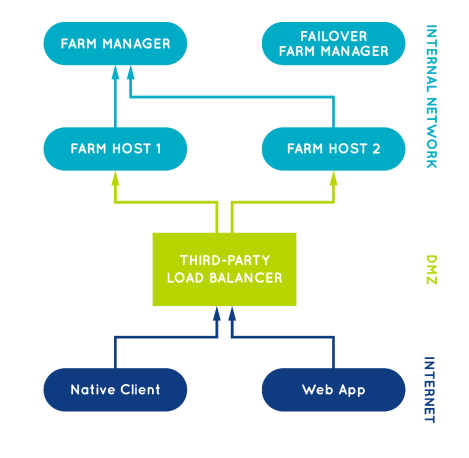
The diagram below illustrates a GO-Global configuration using a third-party load balancer in a DMZ, with the Farm Manager and Farm Hosts in the internal network.
Load Balancer Affinity/Stickiness Options
When a third-party load balancer is used and the load balancer's affinity/stickiness option is not enabled, the load balancer will often route connections from AppController to a different host than the host to which the load balancer routed the Web App's connection. When this occurs, GO-Global is designed to relay the connection from the host that accepted AppController's connection to the host that accepted the Web App's connection.
For example, if the load balancer routes the Web App's connection to Host 1 and the useApp parameter is not specified or set to true, the Application Publishing Service on Host 1 sends a command to the Web App to start AppController. With this command, the Application Publishing Service includes a one-time password (OTP) and the address of Host 1. The Web App then starts AppController and passes these values to AppController on its command line.
When AppController starts and connects to the load balancer, if the load balancer's affinity/stickiness option is not enabled, the load balancer will often route AppController's connection to a different host (e.g., Host 2). AppController then sends the address of Host 1 (that was specified on its command line) to Host 2. Host 2 opens a connection to Host 1 and relays the data between AppController and Host 1. Then AppController sends the OTP to Host 1, and Host 1 verifies that it is the value it specified.
In this scenario, Host 1 obtains the address that it passes to the Web App from the RelayConnectionAddress property in its HostProperties.xml. The Application Publishing Service initializes the value of this property when it starts the first time. If the value of the property is already set, however, the Application Publishing Service does not change it.
Taking a Farm Host Offline
When using third-party load balancers with a Farm Manager, administrators can use the following procedure to remove hosts from the farm without losing any user sessions.
- On all Farm Hosts, set the Disconnected sessions terminate option to either Never or After, with the After value set to at least 1 minute.
- Remove the target host, i.e., the Farm Host you want to take offline, from the load balancer's target group. This will prevent new connections from being routed to the target host, and at some point, depending on the load balancer, it should close the open connections to the target host. When connections to the target host are closed, GO-Global clients will automatically reconnect to their sessions running on the target host via other Farm Hosts in the cluster. Specifically, they will open a new connection to the load balancer, the load balancer will route the connection to one of the active Farm Hosts, and the active Farm Host will relay the connection to the host that has been removed from the load balancer's target group.
- Monitor the number of sessions running on the target host. When the number of sessions reaches zero, shut down the Farm Host.
Note: When using an AWS Network Load Balancer, set deregistration_delay.connection_termination.enabled to true so connections will be closed when the target host transitions to the unused state.
Conclusion
By implementing Farm Managers and Farm Hosts with a third-party load balancer, administrators can achieve seamless session management, improved scalability, and enhanced reliability across their GO-Global farms. This configuration not only simplifies system administration but also ensures continuous availability and performance for users. With proper setup and resource allocation, GO-Global delivers a powerful, centralized framework for managing distributed application access efficiently and securely.
Are you an ISV exploring cloud-based application delivery? Contact us to learn how GO-Global can help you streamline software access for your end users. Or download a free trial to test it yourself.


