


Running AppController
Introduction
AppController streamlines access to GO-Global applications by combining the functionality of native clients and browser add-ons into a single, easy-to-use application. Whether you’re on Windows, macOS, Linux, or a mobile device, AppController allows you to launch GO-Global sessions directly from your desktop, browser, or device home screen. This guide walks you through installing AppController, setting up shortcuts, and connecting securely to your GO-Global host for fast, reliable remote access.
AppController combines the functionality of GO-Global’s native clients and browser add-ons into a single application that can be started from a computer’s desktop, a mobile device, or a web browser.
To install AppController
- Start a Web browser.
- In the Location box, type http:// followed by the host name and AppController installation page. For example, http://hostname/goglobal/
- If AppController is not installed, you will be prompted to download it. Run the setup program from your computer’s operating system. (e.g., GO-Global.AppController.exe, GO-Global.AppController.dmg, GO-Global.AppController.deb, or GO-Global.AppController.rpm.)
- On macOS, drag AppController to the Applications folder
After installing AppController, you can run GO-Global from a browser, from the Start menu, or from a shortcut. By default, the installation file names are renamed from AppController to GO-Global.AppController when downloaded. If the Installer name has been changed via the Branding dialog of the Admin Console, that name will replace GO-Global in the installer name. (E.g., Acme.AppController.exe).
To run AppController from the computer’s menu
- Select the AppController menu option:
- On Windows, click the Start button on the Windows taskbar, and select Programs | AppController.
- On Linux, select the Network or Internet category from the Applications menu, then click AppController.
- On macOS, select Go | Applications from the menu, then double-click AppController.
- Type the address of the host in the Connection dialog.
- Click Connect. When the Sign In dialog appears, type the following information:
- Network user name in the User name box.
- Network password in the Password box
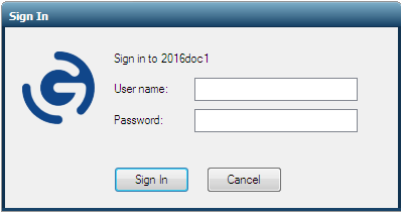
GO-Global allows users three invalid logon attempts before shutting down the logon process.On Windows computers, the Connection dialog has an option to create a shortcut to a GO-Global Host. You can use this option to bypass the Connection dialog when connecting to a hostTo create a shortcut to a GO-Global Host on a Windows computer
- Start AppController via one of the above methods.
- Type the address of the host in the Connection dialog.
- Select the Create desktop shortcut to this host check box.
- Click Connect. A shortcut to the host will be created on the desktop of the computer.
To create an AppController shortcut on Windows
- Right-click on the desktop.
- Click New | Shortcut.
- In the Create Shortcut dialog box, browse to the AppController executable. For example, “C:\Program Files\GraphOn\AppController\AppController.exe”
- Add parameters after the path to AppController.exe. For example: “C:\Program Files\GraphOn\AppController\AppController.exe” -h hostname - a Wordpad -r “C:\Users\Public\Public Documents\test.rtf”
- Type a name for the shortcut and click Finish.
Unlike Windows, GO-Global does not prompt users for a domain. When a domain is not specified, Windows attempts to authenticate the user on the local computer, the computer’s domain, and trusted domains. If users wish to authenticate to a specific domain, they can enter both the name of the domain and the user name in the User name field.
For example, to authenticate on a specific domain, users can enter domain\username. Similarly, to authenticate to the local computer, users can enter computername\username.
GO-Global allows users three invalid logon attempts before shutting down the logon process. After the third failed attempt, the Sign In dialog closes and the user is disconnected. The user can then reconnect to the host and again attempt to sign in, up to the number of failed attempts allowed by Windows. When users do not include the domain in the User name field, however, their account may be locked out before they have reached the number of failed attempts allowed by Windows. This is because each attempt that Windows makes to authenticate the user on the local computer, the computer’s domain, and trusted domains counts as a failed attempt. To avoid this, include the name of the domain along with the user name in the User name field of the Sign In dialog.
Conclusion
With AppController, managing and launching GO-Global applications is simple, secure, and efficient across all major platforms. By following the installation and setup steps, users can quickly connect to their GO-Global hosts and streamline remote access from any device. Whether for business or personal use, AppController enhances flexibility and productivity by delivering a consistent, high-performance experience every time you connect.
Are you an ISV exploring cloud-based application delivery? Contact us to learn how GO-Global can help you streamline software access for your end users. Or download a free trial to test it yourself.


