


Security Options
Introduction
The Security tab in GO-Global’s Host Options gives administrators full control over how clients communicate with the host. From adjusting the host port to configuring encryption protocols, these settings help ensure secure, reliable access in environments with firewalls, load balancers, and varied security requirements. This guide explains how to modify the host port, enable encrypted sessions, and manage TLS certificates and alerts to keep GO-Global sessions protected.
Through the Security tab of the Host Options dialog, administrators can select the transport mode of communication between clients and the GO-Global Host and select the level of encryption for data transmitted between client and host. Administrators can also modify the host port setting and enable Integrated Windows Authentication.
Modifying the Host Port Setting
For users to access GO-Global through a firewall or router, administrators are able to modify the host port setting for the Application Publishing Service. The Application Publishing Service must be running on a dedicated port. Conflicts may arise if another service is running on the same port. The default port number for both TCP and TLS is 491.
To modify the Host Port setting
- Select the desired host from the list of All Hosts.
- Click Tools | Host Options.
- Click the Security tab.
- Type a new port number in the Port box.
- Click OK.
The port can only be set to 443 if there is no web server on the computer configured to accept HTTPS connections. (Web servers accept HTTPS connections on port 443.)
After modifying the host port setting, you will need to append the port parameter. Use the port parameter followed by the new port number. For example, https://site1.example.com/logon.html?port=1667
Users running GO-Global from a shortcut will need to append the -hp argument (followed by the new port number) to the shortcut. For example, "C:\Program Files\GraphOn\AppController\AppController.exe" -h site1.example.com -hp 1667
Users can also specify the port number in the Connection dialog when signing in to GO-Global. In the Host Address box, type the host name or IP address, followed by a colon and the port number. For example, site1.example.com:1667.
Note:
For the Host Address, the FQDN, short name, and IP address are all acceptable. If it's an IPv6 address, the IP address of the host must be in brackets. For example, [fe80::29c:29ff:fe95:519a]:491
If the new port number is not specified by either of these methods, users will be unable to sign in to GO-Global.
After changing the host port, you must restart the Print Spooler Service and the Application Publishing Service for client printing to work on a port other than the default port 491.
Encrypting Sessions
For purposes of security, administrators can optionally encrypt all data transmitted between the client and the host. This includes the client’s user name and password, which are supplied during logon, and any application data submitted by the client or returned by the host.
When TCP transport mode is selected, GO-Global uses 56-bit DES encryption. The DES key is exchanged using RSA Public-Key Cryptography Standards. The RSA keys are 512-bits. When TLS protocol mode is selected, the following encryption algorithms are also available: 128-bit RC4, 168-bit 3DES, and 256-bit AES.
To encrypt a host’s sessions
- Click Tools | Host Options.
- Click the Security tab.
- From the Encryption list, select an encryption level.
- Click OK.
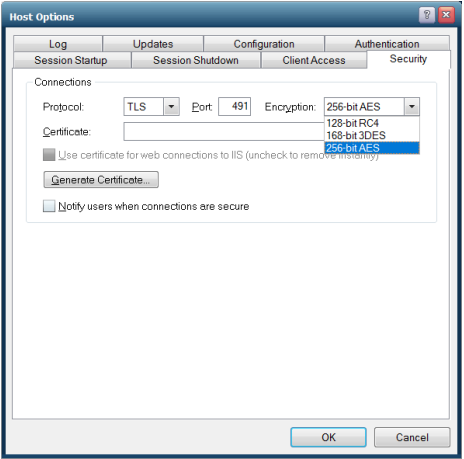
After encryption is enabled, all succeeding GO-Global sessions will be encrypted. Sessions that are active when the feature is enabled will remain unencrypted. The next time the user signs in to the GO-Global Host, however, his or her session will be encrypted. The user must sign off the GO-Global Host, and sign back in for the session to be encrypted.When encryption is enabled, all connections to that GO-Global Host use the selected protocol and encryption algorithm, including connections from Admin Consoles, clients, and Dependent Hosts. When a Relay Load Balancer is used, GO-Global provides linked encryption. Specifically, the Application Publishing Service on the Relay Load Balancer decrypts the data it receives from the client and reencrypts it before it forwards the data to the Dependent Host. Similarly, it decrypts the data it receives from the Dependent Host and re-encrypts it before it forwards it to the client.
Notifying Users of a Secure Connection
When the TLS protocol is selected, you can opt to notify users with a Security Alert when connections are secure.
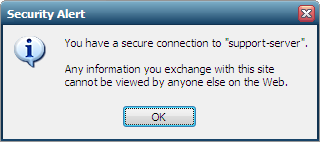
To notify users when connections are secure
- From the Admin Console, click Tools | Host Options.
- Click the Security tab.
- From the Protocol list, click TLS.
- Type or browse to the path of the server’s certificate file in the Certificate box.
- Click the Notify users when connections are secure option.
- Click OK.
Conclusion
By properly configuring port settings, selecting the appropriate encryption level, and enabling TLS notifications, administrators can significantly enhance the security of every GO-Global session. These options ensure that data is protected in transit, host communication remains reliable, and users receive clear visibility when operating within a secure environment. With the right settings in place, GO-Global delivers a safer, more controlled application access experience.
Are you an ISV exploring cloud-based application delivery? Contact us to learn how GO-Global can help you streamline software access for your end users. Or download a free trial to test it yourself.


